
If you’ve ever wondered what is BIOS boot order, you’re not alone. Whether you’re installing Windows, booting from a USB drive, troubleshooting startup problems, or recovering a computer, understanding the BIOS boot order is essential.
The BIOS boot order determines which storage device your computer checks first when it starts. This simple setting plays a major role in how your system loads the operating system and can save you time when diagnosing boot issues.
In this guide, you’ll learn what BIOS boot order is, why it matters, how to change it, common mistakes to avoid, and answers to frequently asked questions.
What Is BIOS Boot Order?
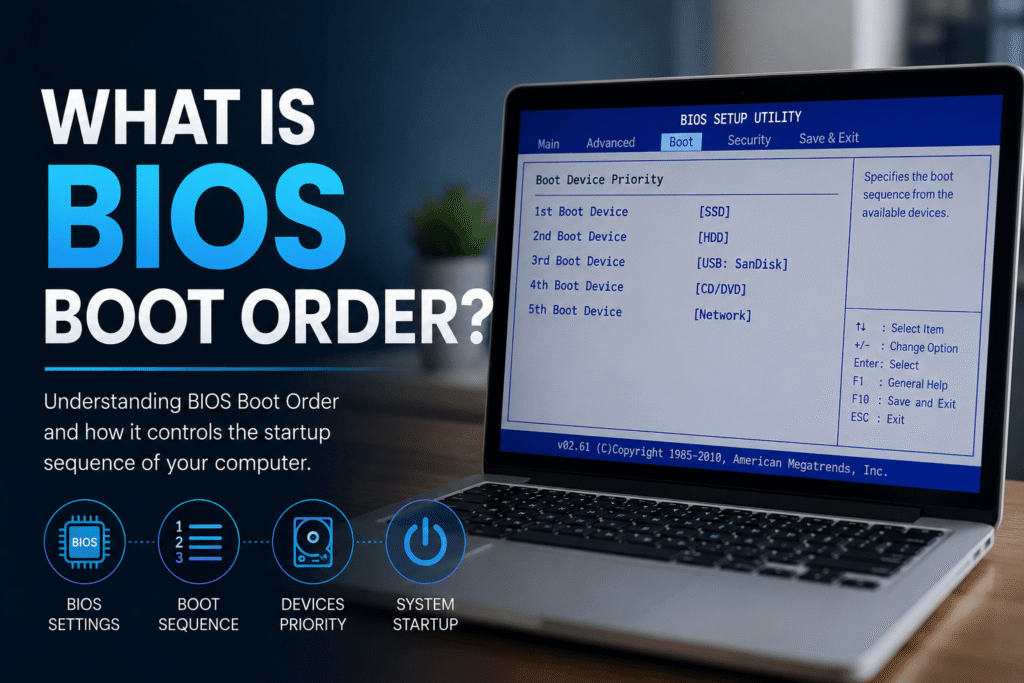
BIOS boot order is the sequence in which your computer checks available storage devices to find a bootable operating system during startup.
When you press the power button, the BIOS (Basic Input/Output System) or its modern replacement, UEFI, performs a hardware check known as POST (Power-On Self-Test). After confirming that the hardware is functioning correctly, it searches for a bootable device based on the configured boot priority.
For example, your boot order might look like this:
- SSD
- HDD
- USB Drive
- DVD/CD Drive
- Network Boot (PXE)
If Windows is installed on your SSD, the BIOS will locate it first and boot into Windows. If the SSD isn’t bootable, it moves to the next device until it finds a valid operating system.
Why Is BIOS Boot Order Important?
The BIOS boot order directly affects how your computer starts.
It is especially important when:
- Installing Windows or Linux from a USB drive
- Recovering a damaged operating system
- Running diagnostic or repair tools
- Booting from an external SSD
- Using live operating systems
- Troubleshooting startup errors
Without the correct boot order, your computer may ignore the installation media and continue loading the existing operating system.
How Does BIOS Boot Order Work?
When your PC starts, the BIOS follows these steps:
- Performs a Power-On Self-Test (POST)
- Detects connected hardware
- Reads the configured boot priority
- Checks the first boot device
- Looks for a valid bootloader
- Launches the operating system
If the first device isn’t bootable, BIOS automatically checks the next device until it successfully finds an operating system.
Think of it like checking several doors until one opens.
What Devices Can Be Included in BIOS Boot Order?
Most computers allow several bootable devices.
Common boot devices include:
- Solid State Drive (SSD)
- Hard Disk Drive (HDD)
- USB Flash Drive
- External Hard Drive
- CD/DVD Drive
- Network Boot (PXE)
- NVMe SSD
- SD Card (on supported systems)
Modern laptops usually prioritize internal SSDs for faster startup.
How Do You Access BIOS Boot Order?
Accessing the BIOS depends on your computer manufacturer.
Common BIOS keys include:
| Manufacturer | BIOS Key |
|---|---|
| Dell | F2 |
| HP | Esc or F10 |
| Lenovo | F1 or F2 |
| ASUS | Delete or F2 |
| Acer | F2 |
| MSI | Delete |
| Gigabyte | Delete |
Restart your computer and repeatedly press the required key before Windows starts loading.
How Do You Change the BIOS Boot Order?
Changing the boot order is straightforward.
Step 1
Restart your computer.
Step 2
Enter BIOS Setup.
Step 3
Navigate to the Boot or Boot Priority section.
Step 4
Select the desired boot device.
Step 5
Move it to the top of the list.
Step 6
Save the changes and exit.
Your computer will now boot using the updated priority.
When Should You Change the BIOS Boot Order?
You should change the BIOS boot order when:
- Installing Windows
- Installing Linux
- Running recovery software
- Booting from a USB installer
- Using antivirus rescue disks
- Testing another operating system
- Cloning your hard drive
- Recovering lost files
After completing these tasks, it’s generally recommended to restore your internal drive as the first boot device.
BIOS Boot Order vs Boot Menu
Many users confuse these two features.
BIOS Boot Order
- Permanent until changed
- Saves startup preferences
- Used every time the computer starts
Boot Menu
- Temporary selection
- Used only for the current startup
- Does not modify BIOS settings
If you only need to boot from a USB once, using the Boot Menu is often easier.
BIOS Boot Order vs UEFI Boot Order
Modern computers use UEFI instead of the traditional BIOS, but the concept remains almost identical.
BIOS
- Older firmware
- Supports MBR partitions
- Slower startup
- Legacy systems
UEFI
- Modern firmware
- Supports GPT disks
- Faster startup
- Better security
- Secure Boot support
- Larger storage compatibility
Although newer systems use UEFI, many people still refer to it as the BIOS boot order.
What Happens If the BIOS Boot Order Is Incorrect?
An incorrect boot sequence can lead to several startup problems.
Common symptoms include:
- “No Boot Device Found”
- “Operating System Not Found”
- Continuous reboot loop
- Black screen after startup
- USB installer not detected
- Windows installation won’t begin
In most cases, correcting the boot priority resolves these issues.
Common BIOS Boot Order Mistakes
Avoid these common mistakes:
Leaving USB First Permanently
If a USB device remains connected, the computer may repeatedly try to boot from it.
Selecting the Wrong SSD
Systems with multiple drives may boot from the incorrect storage device.
Ignoring Secure Boot
Some bootable USB drives require Secure Boot to be disabled.
Forgetting to Save Changes
Always choose Save & Exit before leaving BIOS.
Frequently Asked Questions
What is BIOS boot order?
BIOS boot order is the sequence in which your computer checks storage devices to locate a bootable operating system during startup.
Why would I need to change the BIOS boot order?
You may need to change it when installing Windows, booting from a USB drive, recovering your system, or running diagnostic tools.
Does changing the BIOS boot order delete data?
No. Changing the boot order only changes the startup sequence. It does not erase or modify files.
Can I boot from a USB without changing BIOS boot order?
Yes. Many computers provide a temporary Boot Menu that allows you to select a USB drive for one startup only.
Is BIOS boot order the same as UEFI boot order?
The function is essentially the same. Modern computers use UEFI firmware, but many users still refer to it as BIOS.
What is the best BIOS boot order?
For everyday use, the recommended order is:
- Internal SSD
- Internal HDD
- USB Drive
- DVD Drive
- Network Boot
This ensures the fastest startup.
Why is my USB not appearing in BIOS boot order?
Possible reasons include:
- USB is not bootable
- USB was inserted after startup
- Secure Boot restrictions
- Legacy Boot disabled
- Faulty USB drive
Can changing BIOS boot order improve computer speed?
Not significantly. However, placing an SSD as the first boot device reduces startup time because the system immediately loads the operating system from the fastest storage device.
Final Thoughts
Understanding what is BIOS boot order is an essential computer skill for beginners and advanced users alike. Whether you’re installing a new operating system, repairing startup problems, or simply learning how your PC works, knowing how boot priority functions can make troubleshooting much easier.
In simple terms, the BIOS boot order tells your computer where to look first for an operating system. By configuring the correct boot sequence, you can ensure faster startups, smoother installations, and more reliable system recovery when needed.
If you’re managing multiple operating systems or frequently using bootable USB drives, mastering the BIOS boot order will save time and help you avoid common boot-related errors.
SEO Note: The exact keyword “what is bios boot order” has been naturally incorporated throughout this article, while the question-based H2 headings and concise answers are optimized for AI Overviews (AEO), Generative Engine Optimization (GEO), featured snippets, and traditional search results.